การใช้งาน googlemap
เข้าไปที่ map.google.co.th
https://www.google.co.th/maps
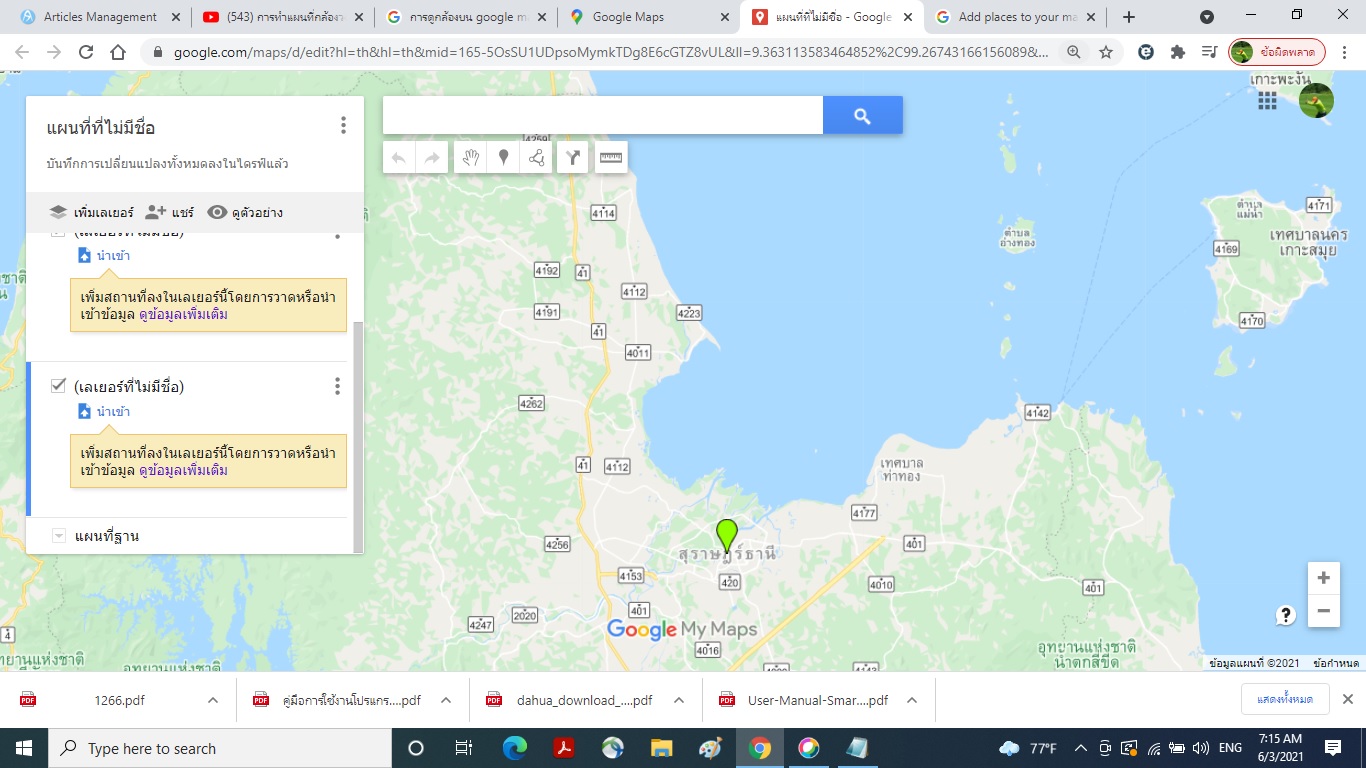
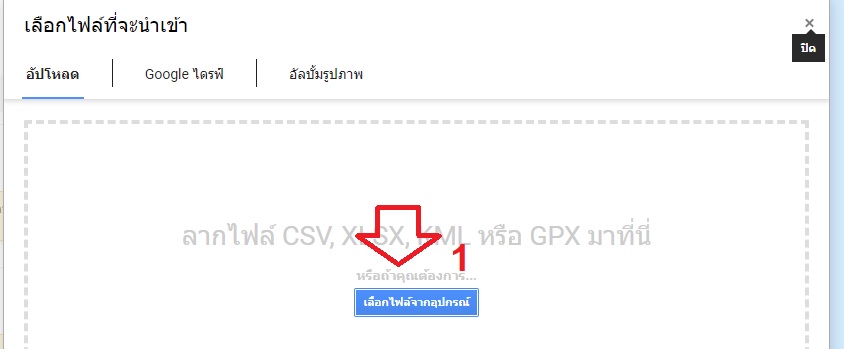
Add places to your map
You can add important places by searching for locations or drawing them directly on the map.
Computer AndroidiPhone & iPad
Add a place
- On your computer, sign in to My Maps.
- Open or create a map. A map can have up to 10,000 lines, shapes, or places.
- Click Add marker
.
- Select a layer and click where to put the place. A layer can have 2,000 lines, shapes, or places.
- Give your place a name.
- Click Save.
Search for places
You can add restaurants, hotels, museums, and other public places to your map.
- On your computer, sign in to My Maps.
- Open or create a map.
- In the search bar, type the name or address of a place.
- Click one of the results on the map.
- If the result is what you want, click Add to map.
Edit a place
- On your computer, sign in to My Maps.
- Open or create a map.
- Click an existing place on the map. In the bottom right of the box that appears, use the icons to make changes.
- Remove a photo: Click Edit
. Then go to the photo and click Remove
.
- Move place: Drag the feature on the map.
- Remove a photo: Click Edit
3 June 2021
อ่านแล้ว 213 ครั้ง